


Mevo Studio
4.298.00 Reviews
App Specs
- Version
- 4.2.1
- Updated On
- License
- Free
- Downloads
- 100,000+
- Developer
- Logitech Europe S.A.
- Categories
- Video Players & Editors
- Platform
- Android
Screenshots
 Analysis by AppCompare
I judge a live-video app less by how many editing buttons it offers than by whether it helps me manage a real shoot without turning the person filming into a full-time technician. That is the lens I’d use for Mevo Studio: it is aimed at multi-camera live production, so its appeal is different from a general-purpose editor built mainly for polishing clips after recording. If you want to switch viewpoints while an event is happening, that focus can be genuinely useful; if you only want quick edits for social posts, it may be more production tool than you need.
What the current version is for
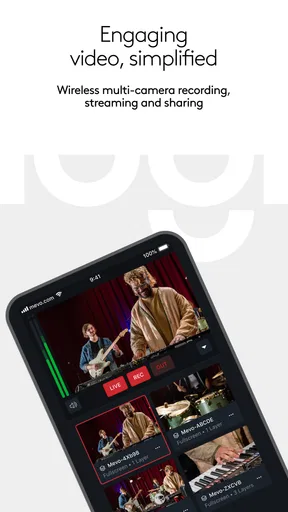
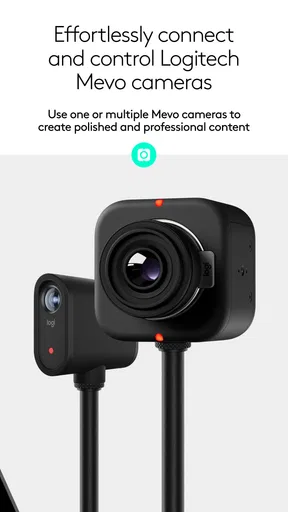
Mevo Studio is a free video player and editor from Logitech Europe S.A., with a 4.2 average from around 388 ratings and over 50,000 installs. Its current version is 4.0.2, and it is rated for Everyone. The key distinction is in the workflow: rather than treating video as a single clip you edit at the end, the app is designed around coordinating a live production with more than one camera. That makes it most interesting for people who have a particular event or presentation to cover, not simply anyone looking for a filter or trimming tool.
I’d consider it for a community talk, a small performance, a product demonstration, or a family event where one fixed view would feel flat. A person running the stream can move between angles as the action changes, giving viewers a more deliberate broadcast without needing a traditional control room. The trade-off is that a multi-camera setup asks for planning: you need to decide what each view contributes and avoid switching just because another angle is available.
What the version history can—and cannot—tell you
The app was released on April 27, 2021, and its current release is 4.0.2. That gives a useful point of reference for someone deciding whether to try it now, but version numbers alone do not explain what changed between releases. I wouldn’t assume that a particular feature was added or that an old workflow was redesigned without checking the app itself. What I can say is that the current product is positioned around wireless multi-camera live streaming, a more focused job than the broad editing promises many apps make.
For an existing user, the practical question is less “Is this a completely different app?” and more “Does the current build still fit the way I produce a stream?” Before an important broadcast, I’d open the app, confirm that my intended camera arrangement is available, and run a short private rehearsal. That is a sensible habit whenever an app sits in the middle of a live event: even familiar controls can feel different when the room is full and the stream is underway.
How I’d plan a simple shoot
For a small panel discussion, I’d give each camera a clear job before going live: one view to establish the room, another to show the speaker, and another to cover the group or a demonstration area. The point is not to collect angles for their own sake. It is to make each switch answer a viewer’s question—who is speaking, what is being shown, or how the audience is responding. A little planning can make a modest setup feel much more intentional.
I’d also keep a stable view available as a fallback. If a close-up is poorly framed or someone moves unexpectedly, a wider shot gives the operator time to recover without putting a confusing image on air. This is one of the less obvious benefits of thinking in camera roles rather than treating every connected view as interchangeable. It also helps a solo operator, who cannot adjust every camera and monitor every moment at once.
Worth Reading Before You Choose

EA SPORTS FC Mobile 26 Is a Bigger Football Game, but It Takes Time

Flipboard Shows What News Apps Must Do Beyond the Feed

Switching to Android Auto Means Rethinking Your Driving Routine

Google Calendar Makes a Crowded Week Easier to Manage

Ludo King Makes the Most of the Minutes Between Plans

Baby Panda World Brings Quick Play to Modern Phones, but Its Game Library Feels Busy
Another useful approach is to rehearse the transitions, not just the connections. Try moving from the wide view to a speaker and back while someone talks, then notice whether the switch interrupts the flow. For a demonstration, plan the moment when the audience should see the object close up and the moment when the wider context matters more. These small decisions do more for a live production than switching rapidly between views.
First Impressions and Setup
Getting started with Mevo Studio was a breeze. The app is available for both Android and iOS, which is a big win if you're juggling devices like me. The download and installation process was quick, and before I knew it, I was ready to explore its features. As someone who isn’t particularly tech-savvy, I appreciated the user-friendly interface. Trust me, you don’t need a degree in videography to start using this app!
Once inside, the app greeted me with a clean and intuitive dashboard. It didn’t feel overwhelming, which is often the case with apps that pack a punch. The layout is straightforward, allowing you to jump straight into action.
Features That Stand Out
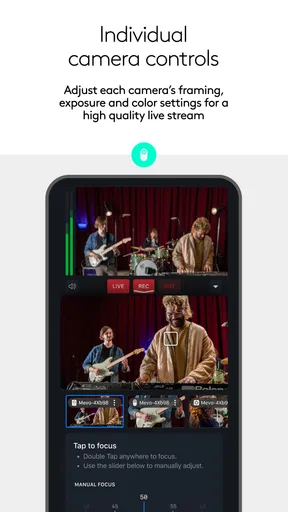
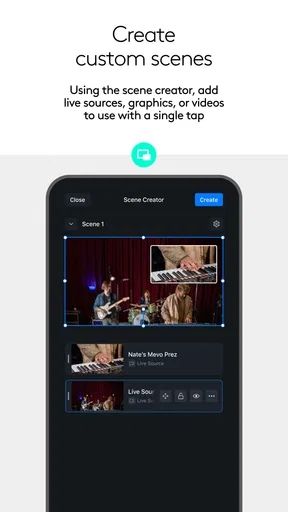
Mevo Studio is like having a mini production studio in your pocket. My initial exploration led me to its multi-camera editing feature, which is a game-changer for anyone looking to produce dynamic content. I could switch between different camera angles effortlessly—no fancy equipment needed.
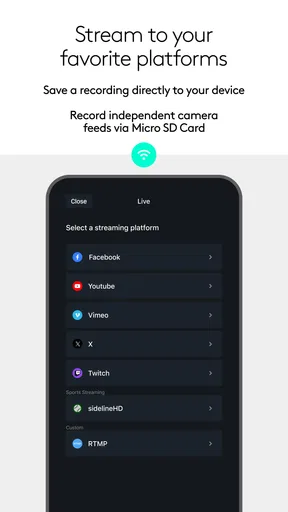
The app also offers live streaming capabilities. I mean, who doesn’t want to go live and share their adventures with friends or an audience? The integration with major platforms like Facebook and YouTube is seamless, making it easy to broadcast your content to the world.
Another neat feature is its auto-editing tools. At first, I was skeptical about how well an app could edit my videos, but I was pleasantly surprised. The app uses AI to automatically trim and enhance your footage, saving you tons of time. And if you’re a control freak like me, manual editing is just as simple.
Performance and Usability
In terms of performance, the app runs smoothly without lagging, which is crucial when you're editing or streaming live. During my tests, it handled high-resolution videos like a champ. The app didn’t crash or slow down, even when I pushed it to its limits.
Usability-wise, the app does a fantastic job. Whether you’re a beginner or a seasoned pro, you’ll find the tools you need without feeling lost. The tutorials and help section are comprehensive, providing guidance whenever you hit a snag.
Limits to weigh before you commit
The multi-camera idea is also the main reason this app will not suit everyone. If you usually record a single clip, trim the beginning and end, and post it later, a standard mobile editor is the simpler choice. It keeps the workflow focused on the footage you already have, while Mevo Studio makes most sense when coordinating a live broadcast is the goal. You may be paying in setup time even when the app itself is free.
There is a learning curve hidden inside the apparently simple interface: the controls may be approachable, but a successful multi-camera stream still depends on thoughtful framing, dependable connections, and someone paying attention to the show. I would not rely on a first attempt for a one-off event that cannot be repeated. A brief rehearsal lets you check the camera positions, decide who will operate the stream, and see whether the arrangement is manageable in the actual space.
There are also practical trade-offs between using a live-production app and recording everything separately. Live switching can make a stream feel immediate and cohesive, but it leaves less room to rethink a moment afterward. Separate recordings give you more freedom to edit later, at the cost of extra work and a slower turnaround. I’d choose based on whether the audience needs to watch in real time or whether a carefully revised video matters more.
Choosing it over a typical editor
Compared with the usual mobile video editor, Mevo Studio is a specialist rather than an all-purpose toolbox. A conventional editor is usually the better fit when I want to assemble clips, add finishing touches, and publish after the event. This app’s distinctive value is the live multi-camera approach. If that is the job in front of me, the extra production focus is worthwhile; if it is not, the usual editor is likely to feel faster and less demanding.
It also occupies a different middle ground from simply going live with one phone camera. A single-device broadcast is easier to set up and leaves fewer moving parts to manage, but it cannot offer the same choice of perspectives. Mevo Studio is worth considering when changing views will help people follow a conversation or see a demonstration clearly. For a casual update where the speaker stays in one place, a single-camera stream is often the more sensible option.
For creators weighing free software against a paid production setup, the listed price is free, with in-app purchases ranging from $19 to $149 per item. I’d start by checking whether the basic workflow meets the needs of the event rather than assuming a purchase is essential. The presence of optional purchases means it is sensible to understand what you actually need before spending; a simple broadcast may not call for anything beyond the basic setup.
A realistic event-day workflow
Imagine I’m helping a local group stream a short evening presentation. Before guests arrive, I’d place one camera where it can keep the speaker and room in view, then use another angle only if it adds something distinct, such as a closer look at a demonstration. I’d check that no camera is blocked when people stand, and I’d make sure the operator can reach the controls without leaving the audience’s view or missing the talk.
During the presentation, I’d keep the wide shot as the safe default and switch only when the close view improves understanding. If the speaker moves away from the planned spot, I’d favor a steady, clear image over a hurried attempt to chase them with a camera. That restraint is useful: viewers generally benefit more from a shot they can follow than from constant changes. Afterward, I’d review what was awkward in the setup before deciding whether more cameras or a different layout would genuinely help next time.
This kind of workflow is a good match for a volunteer, teacher, small organization, or creator who wants a more directed stream but does not have a full production crew. It is less attractive if one person must present, handle several cameras, read audience comments, and troubleshoot at once. In that situation, simplifying the broadcast—or asking someone else to operate it—can matter more than adding another angle.
Who should try it, and what to check
I’d recommend giving it a look if you already have a recurring live use for multiple viewpoints and are willing to rehearse before going public. It is also a reasonable option for someone moving beyond a static phone stream who wants to make conversations, lessons, or demonstrations easier to follow. Its Everyone age rating makes the app broadly suitable, though the live-production decisions and any spending choices still belong with the person organizing the stream.
I’d skip it if you only need an editor for occasional personal clips, prefer to capture footage and refine it later, or want a broadcast that requires almost no preparation. The same goes for an event where there is no time to test the setup: a familiar single-camera approach may be safer than introducing a new workflow at the last moment. Before relying on it, check that your devices and planned camera arrangement work together, and rehearse the complete sequence you expect to use.
People often wonder whether they need production experience to begin. I don’t think a professional background is a prerequisite, but confidence with the event plan matters more than confidence with editing jargon. Start with a simple layout, give each view a purpose, and avoid making the first live attempt the most important one. That approach lets you learn the controls without asking the audience to sit through your experiments.
Personal Takeaway
After spending some quality time with Mevo Studio, I can confidently say it's a solid choice for video enthusiasts. The app strikes a perfect balance between offering advanced features and maintaining simplicity.
The ability to create professional-looking videos with minimal effort is a huge plus. Whether you’re vlogging, documenting your travels, or just capturing everyday moments, this app has you covered. Plus, the live streaming function adds a layer of excitement to your content creation journey.
If I had to nitpick, I’d say the app could benefit from more customization options for its editing tools. While the auto-editing is impressive, having more control over specific elements would be a nice touch. But overall, this doesn’t detract from the app’s overall performance.
So, if you’re in the market for a video editing app that’s both powerful and easy to use, give Mevo Studio a shot. It’s definitely worth checking out, whether you’re a content creator or just someone who loves capturing life’s moments.
What I’d watch as it evolves
With version 4.0.2 as the current release, I’d pay attention to how well the app continues to serve its central purpose: making a multi-camera live stream manageable without making the operator’s job unnecessarily complicated. For existing users, the useful test is whether the current workflow remains reliable for the events they actually run. For new users, it is whether the app’s production approach fits their equipment, audience, and tolerance for rehearsal.
I would also watch for clearer editing flexibility and a setup that remains approachable as a user’s production gets more ambitious. Those are expectations, not claims about changes already made. For now, my recommendation is conditional but positive: choose Mevo Studio when several live viewpoints will improve the experience, and choose a simpler editor or single-camera stream when they will not. That distinction is what makes the app useful rather than merely feature-rich.
Pros
- Intuitive user interface design.
- Wide range of customization options.
- Seamless integration with devices.
- Regular updates with new features.
- Responsive customer support team.
Cons
- Occasional lag during heavy usage.
- Limited offline functionality.
- In-app purchases can be pricey.
- Some features require premium access.
- Initial setup can be time-consuming.
FAQs for Mevo Studio
What is Mevo Studio and what can I use it for?
Mevo Studio is a versatile live streaming and video editing app designed for both Android and iOS devices. It allows users to capture, edit, and broadcast live video content directly from their mobile devices. The app is ideal for content creators, vloggers, and anyone looking to enhance their live streaming capabilities with features like multi-camera support and real-time editing.
Is Mevo Studio suitable for beginners or is it more for advanced users?
Mevo Studio caters to both beginners and advanced users. Beginners will appreciate its intuitive interface and easy-to-use tools, while advanced users can take advantage of its comprehensive features like multi-camera switching and detailed editing options. The app provides tutorials and support to help users make the most of its capabilities, regardless of their experience level.
What are the main features of Mevo Studio?
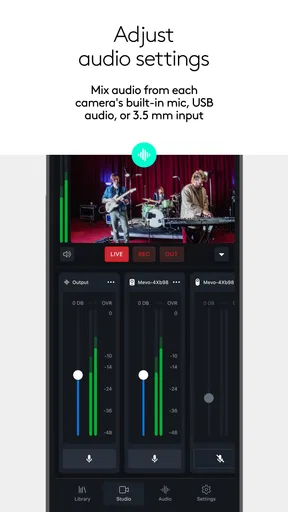
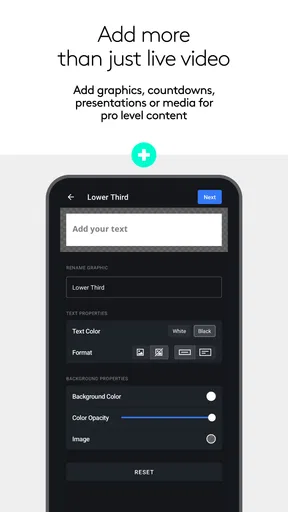
Mevo Studio offers a range of features designed to enhance live streaming and video editing. Key features include multi-camera support, real-time video editing, custom overlays, and direct streaming to platforms like Facebook, YouTube, and Twitch. Users can also benefit from adjustable video resolution settings and audio mixing tools, making it a powerful tool for professional-quality video production.
Are there any drawbacks or limitations to using Mevo Studio?
While Mevo Studio offers a robust set of features, it does have some limitations. Users may find that the app requires a stable internet connection for optimal live streaming performance. Additionally, some advanced features may be locked behind a subscription or in-app purchases. It's important to check device compatibility and ensure your device meets the app's technical requirements for the best experience.
Does Mevo Studio offer customer support and resources for troubleshooting?
Yes, Mevo Studio provides customer support and a variety of resources for troubleshooting. Users can access a comprehensive help center with FAQs, guides, and tutorials directly from the app or the developer's website. There's also a community forum where users can share tips and seek advice. For direct support, users can reach out to the customer service team via email or live chat.


